1.8 KiB
1.8 KiB
| layout |
|---|
| main |
Working with Librera's Profiles
Librera allows you to create multiple profiles. You can add one for anything, from day/night reading to your mood swings to book genres to your special attitude to a certain writer, etc. And remember: Another profile (that might cheer you up) is just a couple of taps away (from your current one).
Adding a New Profile
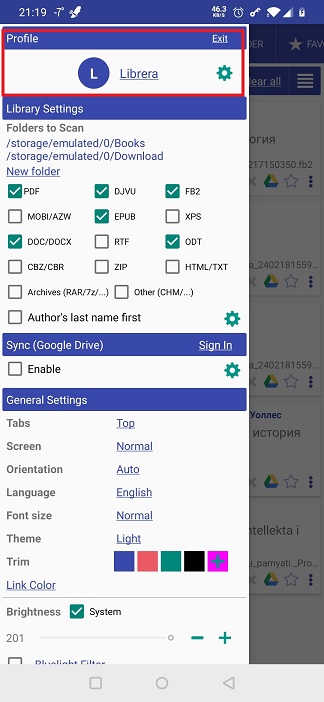
- Go to the slide-out Preferences tab and tap the settings icon in the Profile panel (at the very top)
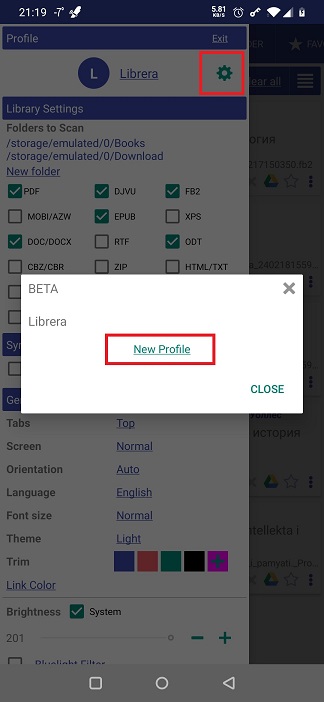
- Tap on the New Profile link in the profile list window
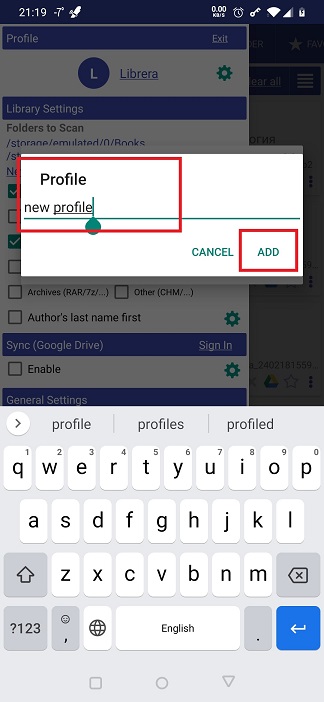
- Specify a meaningful name for the new profile and ADD it to the list
- Now you can configure the UI and reading settings for your new profile
 |
 |
 |
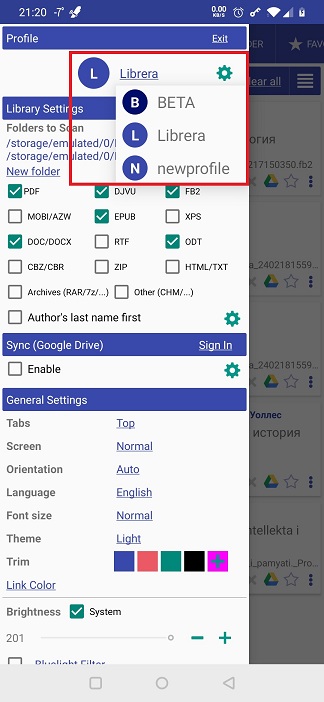
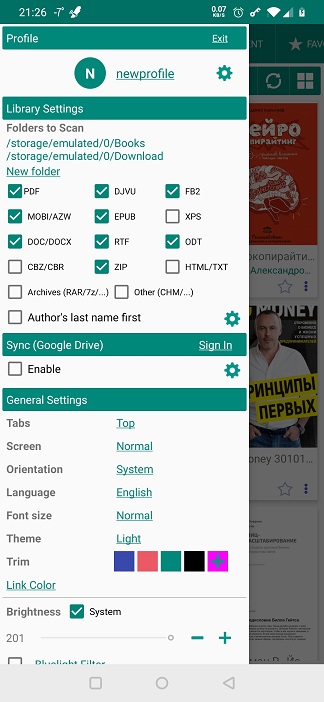
Switching Profiles
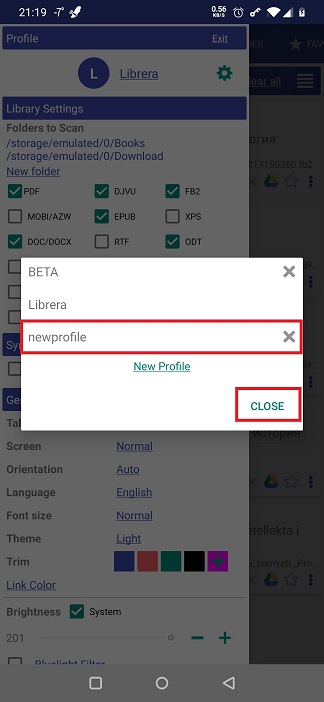
- In the Profile panel of the Preferences tab, tap on the current profile name
- Select a profile you wish to switch to on the dropdown profile list
- Confirm profile switching in a popup dialog and enjoy
 |
 |
 |
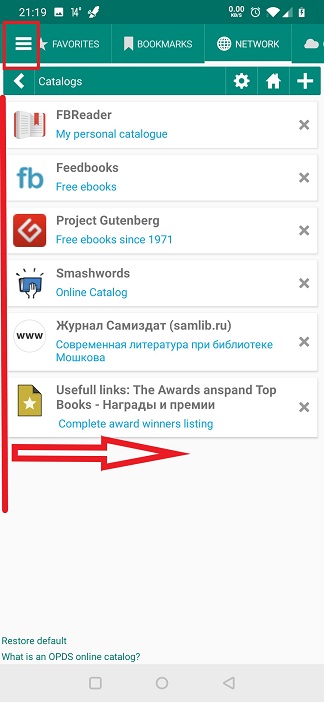
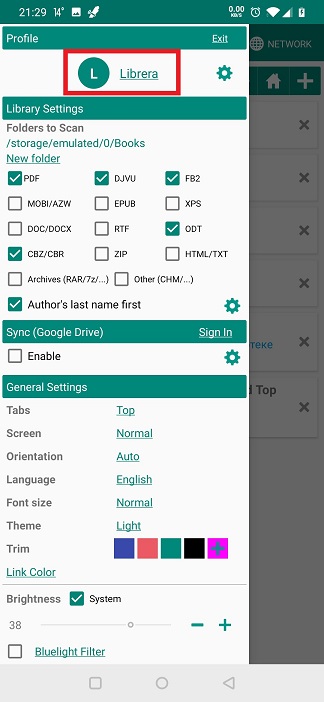
Reseting a Profile
If you need to revert your current profile's settings to their original (default) values, you should follow these easy steps:
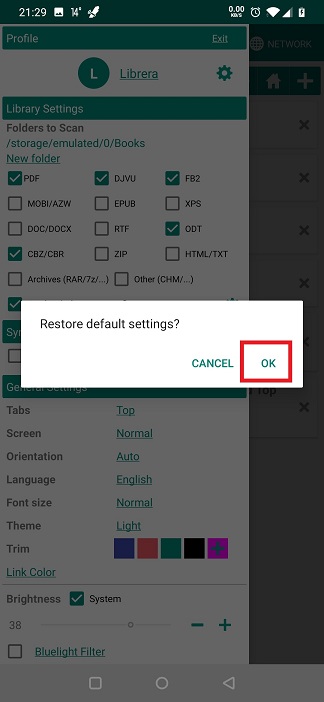
- Long-press on your current profile name in the Profile panel of the Preferences tab
- Confirm your intention in a popup dialog by tapping OK
Note: Your bookmarks, tags, and reading progresses won't be deleted or reset!
 |
 |
 |
Deleting a Profile
Note: You must switch to another profile before deleting your current one.
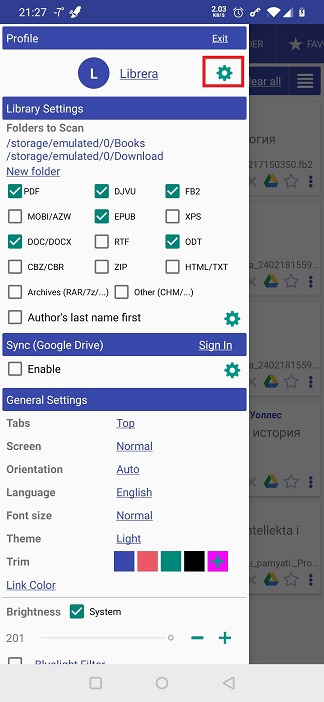
- Tap on the settings icon in the Profile panel of the Preferences window
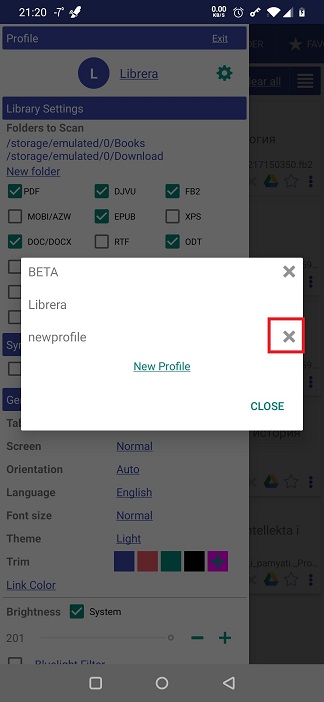
- Click the X next to the profile you intend to delete
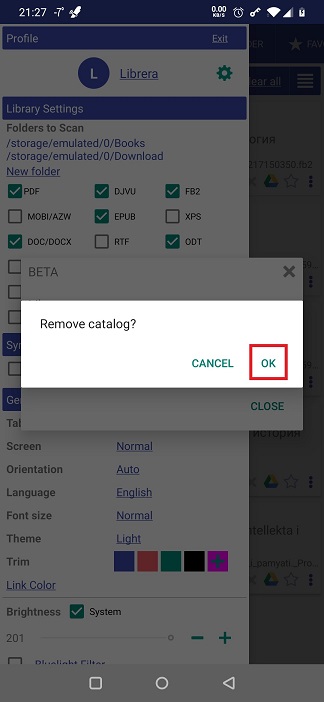
- Confirm deletion by tapping OK
 |
 |
 |