1.5 KiB
1.5 KiB
| layout |
|---|
| main |
Page Viewing/Layout Options
To ensure comfortable reading, Librera allows the user to make adjustments to the page layout in all supported ebook formats.
To access the viewing options:
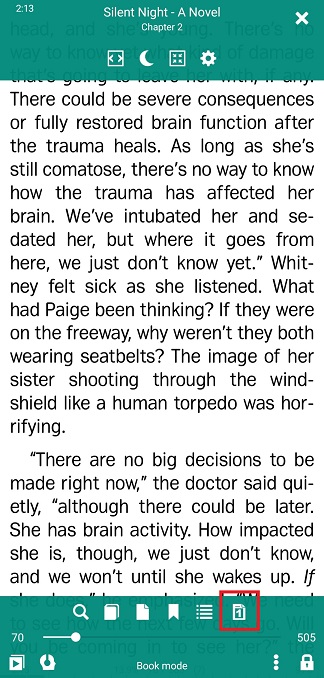
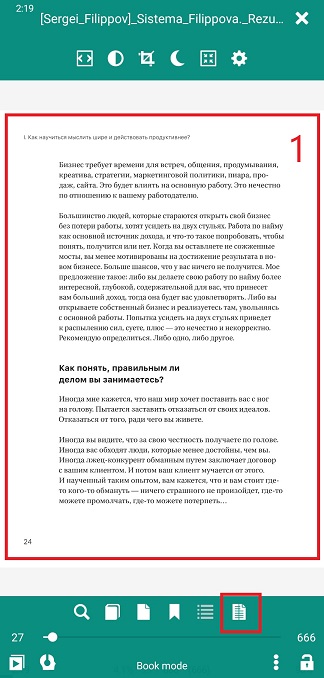
- Center-tap your screen to open the menu
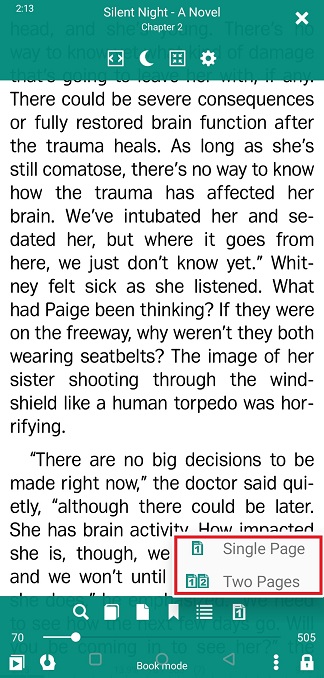
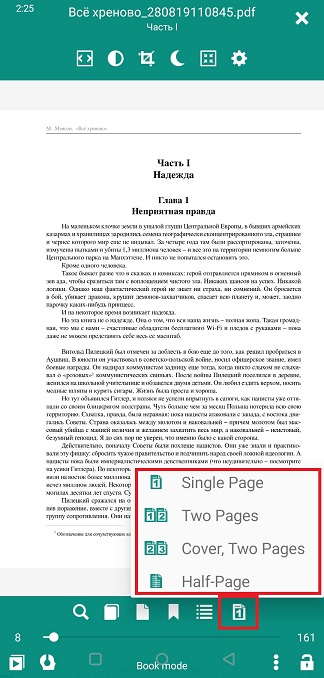
- Tap the layout icon at bottom right to open a dropdown list of options
Adjusting Page Layout in EPUB, MOBI, FB2, AWZ, etc.
- Single Page layout is preferred for Portrait screen orientation
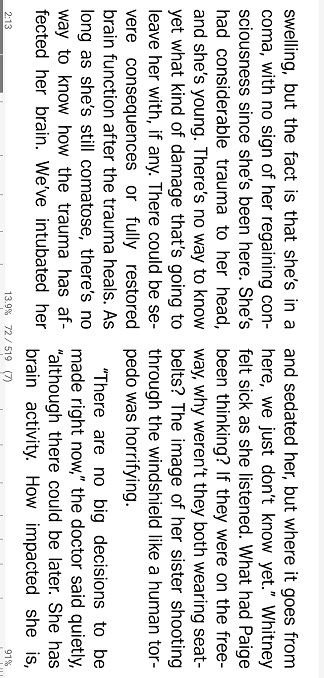
- If your screen orientation changes (automatically or manually) to Landscape, you can follow up with switching to the Two Pages layout
- Switch back to Single Page after rotating your device to Portrait orientation
You can preset combinations of screen orientations and page layouts, and use those combinations profile-wise.
 |
 |
 |
Adjusting Page Layout in PDF/DjVu
Page "rigidity" in PDF/DjVu and the size of your screen will dictate your page layout choices:
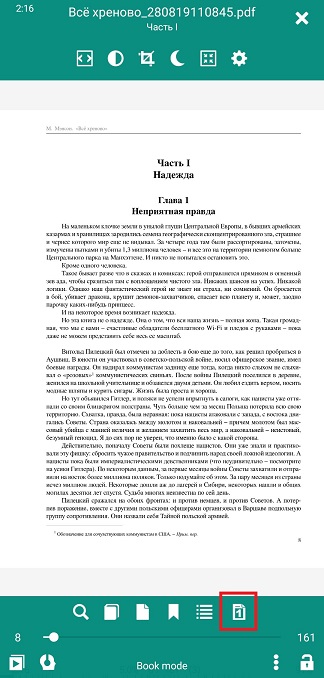
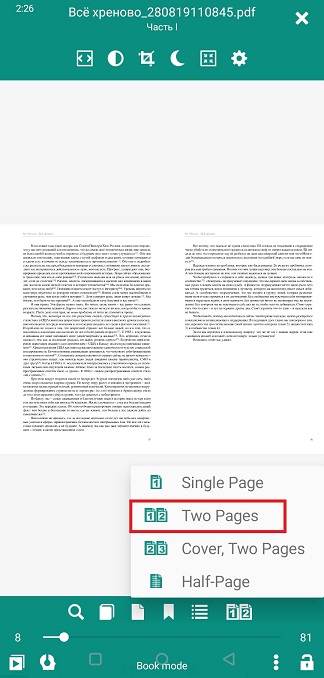
- Single Page or Two Pages mode for Portrait orientation on large screens
- Two Pages mode, preferred for large screens and Landscape orientation
- Sometimes the cover page must be presented separately, especially if illustrations in your book run across spreads (choose Cover, Two Pages in this case)
 |
 |
 |
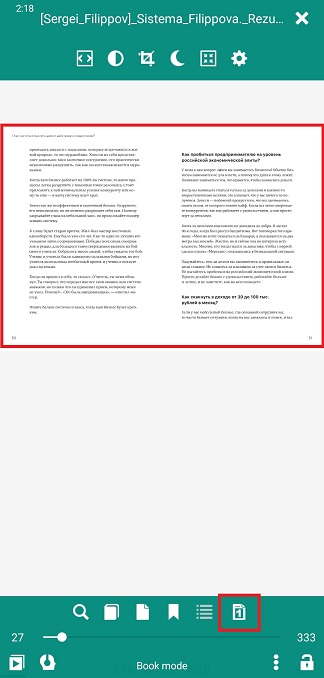
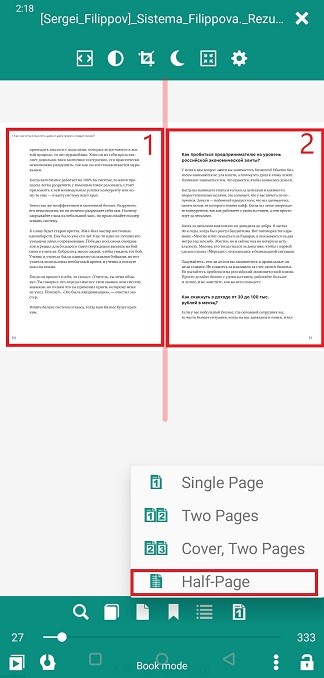
- Half-Page mode comes in handy in two-column page layouts. Just split your page in two by choosing this option
 |
 |
 |